How this Workflow Works
Lead Capture
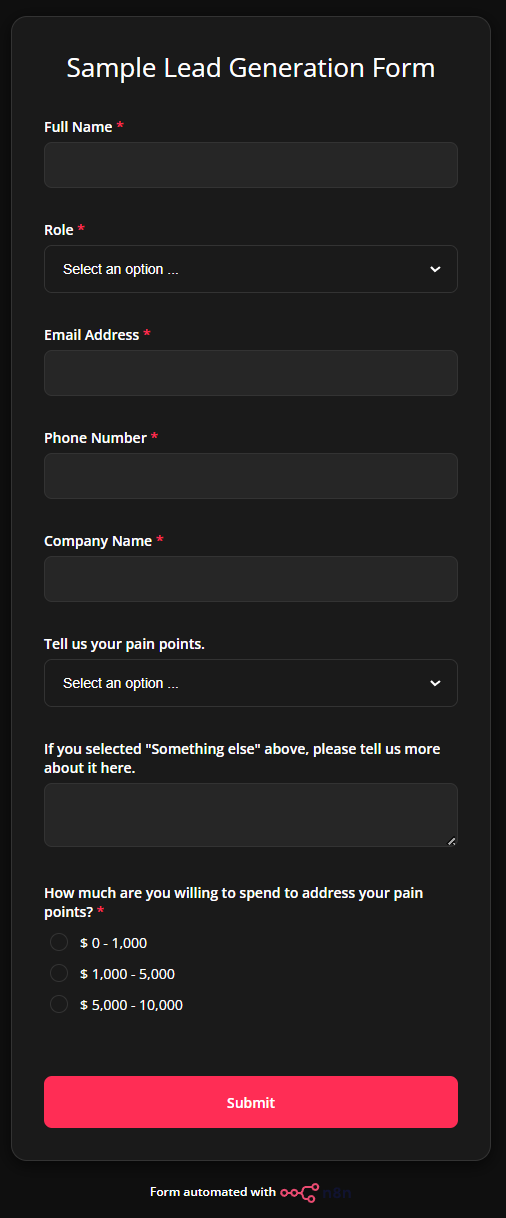
Lead Generation Form (Trigger): The workflow begins when a prospect fills out a "Sample Lead Generation Form" including fields for Role, Company, Pain Points, and Budget.
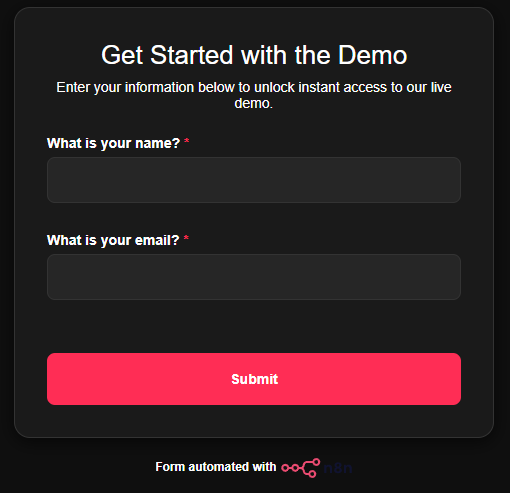
Capture Demo User Information: A secondary form captures the details of the team member running the demo. (This is added to enable you to use the demo; in real scenarios we will be using official team mails or credentials and so this form will not be required.)
Lead Scoring & Qualification
Lead Scoring (Code Node): A JavaScript snippet calculates a score based on the prospect's role and budget; for example, a "Founder / CEO" is worth 60 points and a "$5,000 - $10,000" budget adds 40 points.
Check Lead Score (IF Node): The workflow branches based on the "leadCategory" result:
- Qualified Leads: If the category is "Hot" or "Good," the workflow proceeds to AI generation.
- Non-Qualified Leads: If the category is "Ignore Lead," it sends a "Thank You" message to the prospect via Gmail explaining that the services may not be a cost-effective fit.
AI Content Generation
- Generate Mail Message for Approval: An AI agent powered by Gemini 3.5 Flash drafts a personalized HTML email that acknowledges the prospect's company and specific pain points.
- Tidy Up (Output Parser): A structured output parser ensures the AI's response is formatted as valid JSON containing the raw HTML code for the email.
Human-in-the-Loop Approval
- Intercept and Enhance Data: This node aggregates all relevant lead data and the generated HTML into a single dataset.
- Send for Approval (Gmail Send & Wait): The workflow pauses and sends an email to the team member (whose credential was captured by the Demo User Form); the system waits for the user to select "Approved" or "Rejected" before continuing.
Final Execution
Check Approval Status (IF Node): This node checks if the "Approval" value equals "Approved".
- If Approved: The workflow updates or creates a lead record in Airtable (Shown on the left side of the page and updates dynamically) and sends the finalized, personalized email to the prospect.
- If Rejected: The workflow loops back to Step 3 and repeats until Approval is given by a Marketing Team Member.